For whoever gets the headsets ready
Meta Quest VR headset management from your browser
You need headsets ready before the shift arrives for training. You pair them with a code in minutes and see in one panel which are online, which are offline and how each one behaves during a session.
- headset pairing with a code, no cables
- Minutes
- status of every device
- Online / offline
- settings for the whole fleet
- 1 panel
 SkillsiveExample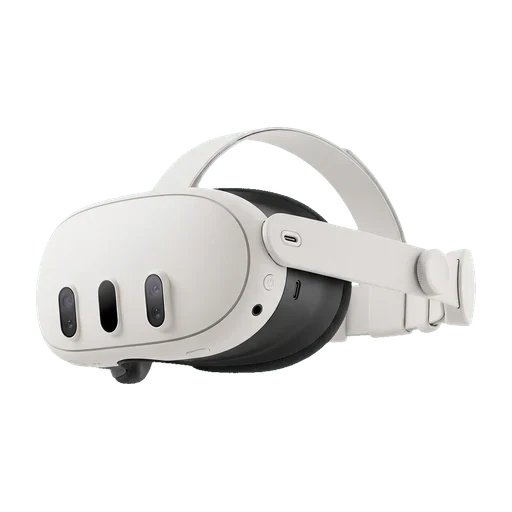
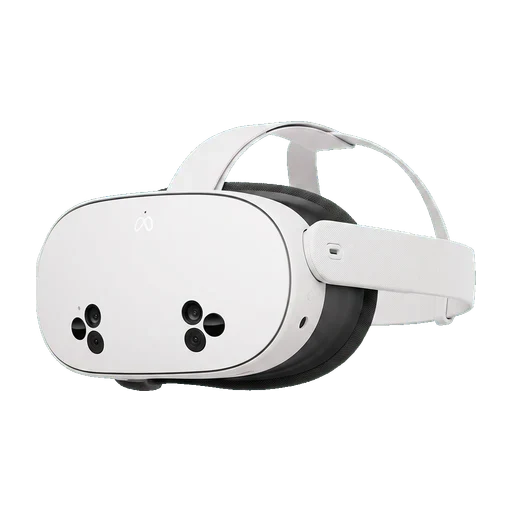
Who it's for
Headsets ready when people arrive for training
The person running the training should not be dashing between headsets with a cable or waiting for IT. Skillsive shows the whole fleet in one place, lets you set guest mode, the tutorial and how trainees sign in, and flags any device that needs attention.
IT administrators
Roll out and supervise dozens of headsets without touching each device individually.
Manufacturing plants
Keep shared headsets on the shop floor ready for the next shift's safety training.
Training providers
Prepare loaner fleets for client sessions quickly, then set the headsets up for the next client.
Who it's for
See how Skillsive works for your team
What it looks like in practice
Every headset that runs training is a device record in your organization: model, country, name, colour, number and serial number, plus whether it takes a seat in your subscription. That record is what connects a completed training to a physical headset in the training room.
Pairing needs no cables and no MDM console. The EHS Academy app shows a code on the headset, you type it into the panel, pick or create the device record, and confirm the authorization. From then on the headset downloads the courses your plan covers and reports its status back to the panel.
At a glance
- Supported hardware
- Meta Quest standalone headsets with the EHS Academy app
- Pairing
- Code shown inside the headset — a few minutes, no cables
- Settings hierarchy
- Device override → organization default → system default
- When settings apply
- The next time the app starts on the headset
- Devices per plan
- A base number per plan, extra headsets available as an add-on
How it works
Step 1: Open the app on the headset
Put on the Meta Quest, connect it to Wi-Fi and launch EHS Academy. The sign-in screen shows a short code in the centre.
Step 2: Enter the code in the panel
In Organization → Devices, expand "Sign in by code", type the code and continue. The panel already knows the model reported by the app.
Step 3: Pick or create the device
Select an existing device record when you are reconfiguring a headset, or create a new one with its country, name, colour and number — the fields that let you tell headsets apart in the training room.
Step 4: Confirm the authorization
Check the summary, confirm, and return to the headset. The device appears in the panel with its status and starts downloading courses.
What you get in the panel
Device register
Model, country, name, colour, number and serial number for every headset, so "the red one, number 4" in the training room is the same device you see in the panel.
Status and activity
See at a glance which headsets are online, which are offline and when each was last active — before you walk into the training room, not after.
Settings on two levels
Set defaults for the whole organization and override them on individual headsets. Each option is set independently: a device can override the tutorial setting and inherit everything else.
Control the on-device experience
Decide whether guest play is allowed, when the tutorial is shown (every time, once per trainee, or never), whether it can be skipped, how a trainee signs in and whether the list shows nicknames, full names or employee IDs.
Per-device statistics
Open a headset and see the training sessions run on it, with the completions and activity chart for that specific device — useful for spotting a unit that sits unused or one that is used far more than the rest.
Seats and subscription
Each plan includes a base number of devices, and every headset shows whether it is active in the subscription. The device list can be filtered, searched and exported to CSV or XLSX.
What it gives you
- Pair a new Meta Quest headset with your organization in a few minutes
- No cables, no manual file copying — content and results sync over Wi-Fi
- One place to see which headsets are online, offline and free for the next group
- Change training behaviour for the whole fleet without touching a single headset
- Shop-floor headsets can behave differently from the ones at the safety officer's desk
- Seat control: you always know how many devices your subscription actually covers
Frequently asked questions
- Which headsets does Skillsive support?
- Skillsive is built for Meta Quest standalone headsets running the EHS Academy app — no PC and no cables are required to run training.
- How long does it take to add a new headset?
- A few minutes. You install the app from the Meta Horizon Store, read the code shown on the sign-in screen, enter it in the panel, pick or create the device record and confirm the authorization.
- Can I stop trainees from leaving the training?
- You control the training experience through device settings: guest play, when the tutorial appears, whether it can be skipped and how a trainee signs in. Locking the headset to a single app is handled by your mobile device management (MDM) solution or Meta Quest kiosk mode, not by Skillsive.
- Can I see which devices are currently in use?
- Yes. The device list shows each headset's status and recent activity, and each device has its own statistics with the training sessions run on it.
- What does "active in subscription" mean?
- It shows whether the headset occupies one of the device seats included in your plan. Plans come with a base number of devices, and more can be added as an add-on.
- When does a settings change reach the headset?
- A headset fetches its settings when the app starts on it. A session already in progress finishes with the old behaviour, so restart the app on the headsets before a session if you have just changed something.
Related features
Step-by-step guides
Detailed instructions with screenshots in the Skillsive help centre.
- Connect a VR headset to SkillsiveSign a Meta Quest headset into your Skillsive organization with the code shown in the EHS Academy app and bind it to the right device record.
- Device settingsControl how your VR headsets behave from the panel — tutorial, guest mode and how a trainee signs in. Organization-wide defaults and per-device overrides.
- What the device fields meanExplanation of the fields used when creating a VR device: model, country, name, color, and number.
- Run a VR training event for 20 peopleSet up a 20-headset VR training station single-handed — room layout, headset checks, battery rotation, boundaries, hygiene and the between-session reset.
Ready to see it in action?
Tell us about your training goals and we will show you how Skillsive fits your organization — or start with a free account right away.